Showing posts with label Virtualization. Show all posts

Tuesday, January 21, 2014

VMware Player 6.0.1 on Ubuntu 14.04 alpha - Modules compile error

Updating Ubuntu 14.04 (alpha / development) with latest 3.13.0-x kernels will require recompiling the modules for VMware Player 6.0.1 which will fail as per below. The solution is based on Garrett Skjelstad's "VMware modules & kernel 3.13" blog post.
$ sudo lsb_release -a
No LSB modules are available.
Distributor ID: Ubuntu
Description: Ubuntu Trusty Tahr (development branch)
Release: 14.04
Codename: trusty

$ uname -a
Linux VOSTRO 3.13.0-4-generic #19-Ubuntu SMP Thu Jan 16 18:10:11 UTC 2014 x86_64 x86_64 x86_64 GNU/Linux

$ vmplayer --version
VMware Player 6.0.1 build-1379776


[...]
  CC [M]  /tmp/modconfig-7ykUGm/vmnet-only/filter.o
/tmp/modconfig-7ykUGm/vmnet-only/filter.c:206:1: error: conflicting types for ‘VNetFilterHookFn’
 VNetFilterHookFn(unsigned int hooknum,                 // IN:
 ^
/tmp/modconfig-7ykUGm/vmnet-only/filter.c:64:18: note: previous declaration of ‘VNetFilterHookFn’ was here
 static nf_hookfn VNetFilterHookFn;
                  ^
/tmp/modconfig-7ykUGm/vmnet-only/filter.c:64:18: warning: ‘VNetFilterHookFn’ used but never defined [enabled by default]
/tmp/modconfig-7ykUGm/vmnet-only/filter.c:206:1: warning: ‘VNetFilterHookFn’ defined but not used [-Wunused-function]
 VNetFilterHookFn(unsigned int hooknum,                 // IN:
 ^
make[2]: *** [/tmp/modconfig-7ykUGm/vmnet-only/filter.o] Error 1
make[2]: *** Waiting for unfinished jobs....
make[1]: *** [_module_/tmp/modconfig-7ykUGm/vmnet-only] Error 2
make[1]: Leaving directory `/usr/src/linux-headers-3.13.0-4-generic'
make: *** [vmnet.ko] Error 2
make: Leaving directory `/tmp/modconfig-7ykUGm/vmnet-only'
Failed to build vmnet.  Failed to execute the build command.
Starting VMware services:
   Virtual machine monitor                                             done
   Virtual machine communication interface                             done
   VM communication interface socket family                            done
   Blocking file system                                                done
   Virtual ethernet                                                   failed
   VMware Authentication Daemon                                        done

To fix this we will need to apply this patch to filter.c in VMware Player module sources. Start with saving the diff below (download):
205a206
> #if LINUX_VERSION_CODE < KERNEL_VERSION(3, 13, 0)
206a208,210
> #else
> VNetFilterHookFn(const struct nf_hook_ops *ops,        // IN:
> #endif
255c259,263
<    transmit = (hooknum == VMW_NF_INET_POST_ROUTING);
---
>    #if LINUX_VERSION_CODE < KERNEL_VERSION(3, 13, 0)
>       transmit = (hooknum == VMW_NF_INET_POST_ROUTING);
>    #else
>       transmit = (ops->hooknum == VMW_NF_INET_POST_ROUTING);
>    #endif
 

Or download directly to the system:
$ wget https://sites.google.com/site/dandar3blogspotcom/vmware-player-601-on-ubuntu-1404-alpha-filter.c.diff \
       -O /tmp/filter.c.diff --no-check-certificate

Next will apply the patch to filter.c in vmnet.tar (extract, patch, update archive):
$ sudo -E -s

# cd /usr/lib/vmware/modules/source/ 

# cp vmnet.tar vmnet.tar.original

# tar xvf vmnet.tar vmnet-only/filter.c 
vmnet-only/filter.c

# patch vmnet-only/filter.c < /tmp/filter.c.diff 
patching file vmnet-only/filter.c

# tar -uvf vmnet.tar vmnet-only/filter.c 
vmnet-only/filter.c

# rm -rf vmnet-only/
And now you're ready to restart VMplayer, which will ask you to re-compile VMware Player modules, successfully this time.


Saturday, August 3, 2013

VMware Player 5.0.2 on Linux Mint 15 - VMware Tools installation error

Trying to install VMware Tools for Windows on a Windows virtual machine running on Linux Mint 15 you might get the error below:

There was a problem updating a software component. Try again later and if the problem persists, contact VMware Support or your system administrator.


A process trace on vmplayer  reveals what might be the obvious for some (access denied)...
$sudo strace -f -eopen -p `pidof vmplayer`
[...]
13783 open("/etc/vmware-installer/database", O_RDWR|O_CREAT, 0644) = -1 EACCES (Permission denied)
[...]

Run vmplayer elevated to be able to install VMware tools:
gksudo vmplayer &

A new strace shows success where it failed earlier running as a normal user:
$sudo strace -f -eopen -p `pidof vmplayer`
[...]
16026 open("/etc/vmware-installer/database", O_RDWR|O_CREAT, 0644) = 4
[...]


Sunday, April 8, 2012

VMware Player - Windows XP Mode

Trying to convert a Windows XP Mode Virtual PC image to run in VMware Player 4.0.2, the embedded feature failed on me although I do have the VMware vCenter Converter Standalone 5.0 working fine.

The "VMware vCenter Converter Standalone" product is not configured properly for use with VMware Player.


A ProcMon trace didn’t show much, I see it cannot find some registry keys for the product CLSID; found the log file, but not much help.

Using the standalone converter on its own works just fine.


But later when running the VM, it will ask for Windows activation.


From what I understand XP Mode actually works, it uses differential disks on top of the base image, which is supposed to contain an already activated Windows copy.

Apparently the solution is quite simple, maybe something the VM import should have done.
http://communities.vmware.com/message/1458537#1458537

Edit the .vmx file and add this parameter:
xpMode.enabled=TRUE

Wednesday, March 28, 2012

Reinstalling VMware Player 4.0.2 on Windows

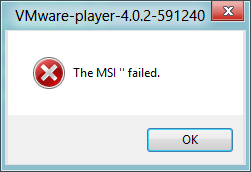
Having trouble with the network adapter on a VM thought I might uninstall VMware Player 4.0.2 and install it again. Trouble is the uninstall failed with The MSI ‘’ failed message.


This KB from VMware offers a tool called VMware_Install_Cleaner.exe for cleaning-up the registry entries and allowing re-installation.

Cleaning up after an incomplete uninstallation on a Windows host
http://kb.vmware.com/selfservice/microsites/search.do?language=en_US&cmd=displayKC&externalId=1308

Thursday, March 8, 2012

VMware ESX, xperf, IntelPPM

One more case, this time a Windows 2008 R2 SP1 VM running in VMware ESX, analysed with xperf – part of Windows Performance Analysis tools.

Before

  • Registry values:
    • HKEY_LOCAL_MACHINE\SYSTEM\CurrentControlSet\Services\Processor\Start = 3
    • HKEY_LOCAL_MACHINE\SYSTEM\CurrentControlSet\Services\Intelppm\Start = 3
  • xperf -on latency
  • [workload]
  • xperf -d latency_before.etl
  • xperf latency_before.etl
geekbench - before
xperf latency - before

After

  • Registry values:
    • HKEY_LOCAL_MACHINE\SYSTEM\CurrentControlSet\Services\Processor\Start = 4
    • HKEY_LOCAL_MACHINE\SYSTEM\CurrentControlSet\Services\Intelppm\Start = 4
  • xperf -on latency
  • [workload]
  • xperf -d latency_after.etl
  • xperf latency_after.etl
geekbench - after
xperf latency - after

Conclusion

It seems that intelppm.dll is now off the radar, but hal.dll has increased in number of events, although half the number. The GeekBench scores have gone slightly up, but at the same time it’s a virtual machine. I can’t say there is a visible gain, remains to be tested further from application throughput point of view...

Update 28 March 2012

You may find that after the registry change that vmware-vmx.exe will exhibit constant high CPU consumption on the host system, in which case you might want to revert back to the default registry values.

Friday, February 24, 2012

VMware Player – performance settings

Virtual machine on USB or other slow storage device runs slowly http://kb.vmware.com/selfservice/microsites/search.do?language=en_US&cmd=displayKC&externalId=1620

A couple of settings that might improve performance of a virtual machine running in VMware Player – changes go into the .vmx file, make sure that it’s shutdown first otherwise they will be removed when you shutdown the VM.

The first setting makes it stop creating the .vmem file on disk – before the change you can actually see it’s a memory mapped file using RAMMap from Sysinternals.
mainMem.useNamedFile=FALSE

The second set makes the VM pre-allocate the configured amount of RAM at start-up, rather than dynamically expand as needed - change visible in Process Explorer.
sched.mem.pshare.enable = "FALSE"
MemTrimRate = 0
prefvmx.useRecommendedLockedMemSize = "TRUE"
prefvmx.minVmMemPct = "100"

Sunday, February 19, 2012

Kernrate Viewer, VMware Player, Intelppm

Reading this article on high CPU spikes on Mark Russinovich’s blog the other day found about Kernrate Viewer, coming very handy when looking at some high kernel times today on a Windows XP (x32) VM running locally in VMware Player 4.


A quick search found this article on Virtual PC Guy's blog – setting the two registry keys from 1 to 4 seems to have somewhat solved the problem, although now “hal” is showing quite high, I might need to look into that a little further...

Update 28 March 2012

You may find that after the registry change that vmware-vmx.exe will exhibit constant high CPU consumption on the host system, in which case you might want to revert back to the default registry values.

Friday, February 3, 2012

You have an incorrect version of driver "vmx86.sys". Try reinstalling VMware Player.

Just got this problem trying to run a Windows XP image (x86) on Windows 8 Developer Preview (x64) with User Account Enabled (although I’m pretty sure the same happens to any other x64 system with UAC enabled).

Could not get vmx86 driver version: The handle is invalid.

You have an incorrect version of driver "vmx86.sys". Try reinstalling VMware Player.

Failed to initialize monitor device.

Found this KB from WMware and this thread, and the solution is to run VMplayer as Administrator (the first thing that should’ve popped to mind, but didn’t). VMware Player should’ve asked for elevation on its own, but I guess that’s a different discussion…

http://kb.vmware.com/selfservice/microsites/search.do?language=en_US&cmd=displayKC&externalId=2006883

http://communities.vmware.com/message/1137846

* * *

Personally I’ve changed the properties of the pinned VMware Player icon in my task bar:

  • SHIFT + right click on the icon > Properties
  • Advanced button
  • check “Run as administrator” > OK

image

image

Wednesday, May 20, 2009

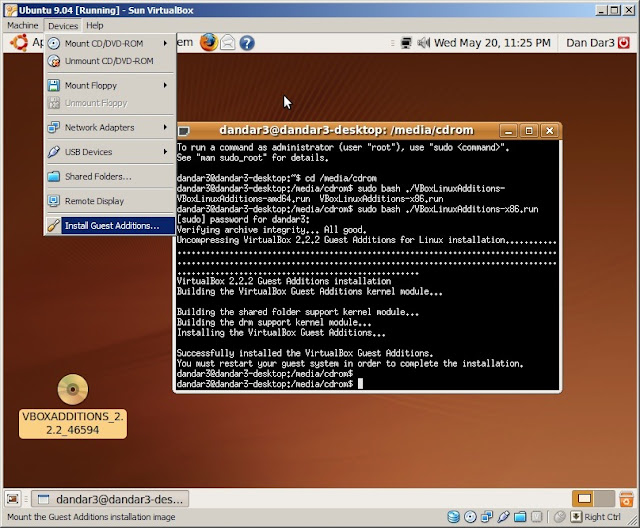
Installing Sun VirtualBox guest additions for Ubuntu

I found that Ubuntu 9.04 works better in Sun’s VirtualBox – the cursor was way off in Microsoft’s Virtual PC - the only problems were the screen resolution and the annoying bit with capturing the mouse and having to use the scape key. That is until I found that Sun provides guest additions for Ubuntu, see this post here on how to install.