

Showing posts with label Remote Control. Show all posts
Showing posts with label Remote Control. Show all posts
Friday, June 28, 2013

Friday, October 26, 2012
Remote Desktop Protocol 8.0 on Windows 7 SP1
Labels:
Remote Control
,
Windows 7
Windows 8 and Windows Server 2012 are shipping with support for RDP 8.0 out of the box, and now Windows 7 SP1 and Windows Server 2008 R2 SP1 just got an update for it.
Remote Desktop Services Blog
http://blogs.msdn.com/b/rds/archive/2012/10/23/rdp-8-0-update-for-windows-7-sp1-released-to-web.aspx
1. Install hotfix 2574819 and restart
An update is available that adds support for DTLS in Windows 7 SP1 and Windows Server 2008 R2 SP1
http://support.microsoft.com/kb/2574819
If you are unable to download the hotfix due to Windows Genuine Advantage complaining with:
2. Install update 2592687 and restart
Description of the Remote Desktop Protocol 8.0 update for Windows 7 SP1 and Windows Server 2008 R2 SP1
http://support.microsoft.com/kb/2592687
The KB goes in detail through features and known issues, as well as the steps on how to enable RDP 8.0 on a Windows 7 SP1 machine.
Open Local Group Policy Editor (gpedit.msc) and


Connecting from an updated Windows 7 SP1 machine (or a Windows 8), you will notice the change in the remote desktop client title bar (in full screen).
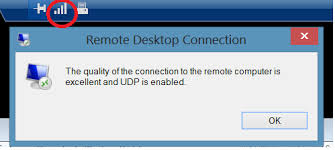
Before, with RDP 7.1 I noticed when moving up and down over the Start menu the highlighting was lagging behind (every few items), where now with RDP 8.0 it is much faster - probably due to improvements in the protocol as well as I assume the use of UDP packets.
Remote Desktop Services Blog
http://blogs.msdn.com/b/rds/archive/2012/10/23/rdp-8-0-update-for-windows-7-sp1-released-to-web.aspx
* * *
Update 13 Nov 2013 - also see:
Remote Desktop Protocol 8.1 Update for Windows 7 SP1 released to web
* * *
Just followed the instructions to enable RDP 8.0 on a remote Windows 7 SP1 machine.1. Install hotfix 2574819 and restart
An update is available that adds support for DTLS in Windows 7 SP1 and Windows Server 2008 R2 SP1
http://support.microsoft.com/kb/2574819
If you are unable to download the hotfix due to Windows Genuine Advantage complaining with:
This version of the Windows Genuine Advantage validation tool is no longer supported. Please download the newest version and ensure that your system clock is accuratesee this Microsoft Forums thread for a solution – opening this address in Internet Explorer will install a newer Genuine Advantage ActiveX instead of the downloadable exe that fails with above message.
2. Install update 2592687 and restart
Description of the Remote Desktop Protocol 8.0 update for Windows 7 SP1 and Windows Server 2008 R2 SP1
http://support.microsoft.com/kb/2592687
The KB goes in detail through features and known issues, as well as the steps on how to enable RDP 8.0 on a Windows 7 SP1 machine.
3. Enable RDP 8.0 on the remote computer (Windows 7 SP1)
Open Local Group Policy Editor (gpedit.msc) and
a) Enable Remote Desktop Protocol 8.0
Computer Configuration > Administrative Templates > Windows Components > Remote Desktop Services > Remote Desktop Session Host > Remote Session Environment > Enable Remote Desktop Protocol 8.0 = Enabled
b) Enable UDP transport (optional)
Computer Configuration > Administrative Templates > Windows Components > Remote Desktop Services > Remote Desktop Session Host > Connections > Select RDP transport protocols = Enabled, Use Both UDP and TCP
Connecting from an updated Windows 7 SP1 machine (or a Windows 8), you will notice the change in the remote desktop client title bar (in full screen).
Before, with RDP 7.1 I noticed when moving up and down over the Start menu the highlighting was lagging behind (every few items), where now with RDP 8.0 it is much faster - probably due to improvements in the protocol as well as I assume the use of UDP packets.
Wednesday, April 25, 2012
Citrix Receiver 3.2 – allow for unsecure “accounts” (Windows)
Labels:
Citrix
,
Remote Control
By default the new Citrix Receiver 3.2 doesn’t seem to allow for unsecure PNAgent URLs, but I managed to find this Citrix KB that tells how to change that through the Windows registry.
* * *
Error: Cannot Process Provisioning File – see Resolution 4 section
http://support.citrix.com/article/CTX132169
To allow Citrix Receiver 3.1 add unsecure accounts complete the following procedure in the Windows registry:
Caution! This procedure requires you to edit the registry. Using Registry Editor incorrectly can cause serious problems that might require you to reinstall your operating system. Citrix cannot guarantee that problems resulting from the incorrect use of Registry Editor can be solved. Use Registry Editor at your own risk. Back up the registry before you edit it.

* * *
http://support.citrix.com/article/CTX132169
To allow Citrix Receiver 3.1 add unsecure accounts complete the following procedure in the Windows registry:
Caution! This procedure requires you to edit the registry. Using Registry Editor incorrectly can cause serious problems that might require you to reinstall your operating system. Citrix cannot guarantee that problems resulting from the incorrect use of Registry Editor can be solved. Use Registry Editor at your own risk. Back up the registry before you edit it.
- Navigate to HKEY_LOCAL_MACHINE\SOFTWARE\Citrix\AuthManager
(for 64-bit machines, navigate to HKEY_LOCAL_MACHINE\SOFTWARE\Wow6432Node\Citrix\AuthManager) - Create a new String value called ConnectionSecurityMode.
- Set the value to Any.
- Navigate to HKEY_LOCAL_MACHINE\SOFTWARE\Citrix\Dazzle
(for 64-bit machines, navigate to HKEY_LOCAL_MACHINE\SOFTWARE\Wow6432Node\Citrix\DazzleB) - Modify the String value called AllowAddStore to A.
* * *
Download - Windows 64bit .regWindows Registry Editor Version 5.00 [HKEY_LOCAL_MACHINE\SOFTWARE\Wow6432Node\Citrix\AuthManager] "ConnectionSecurityMode"="Any" [HKEY_LOCAL_MACHINE\SOFTWARE\Wow6432Node\Citrix\Dazzle] "AllowAddStore"="A"
Citrix Receiver 3.2
---------------------------
Citrix Receiver
---------------------------
The account URL must use the https:// prefix. This prefix assures a secure connection.
---------------------------
OK
---------------------------
Citrix Receiver 4.1
---------------------------
Add Account
---------------------------
Please enter a secure server address that begins with HTTPS.
---------------------------
OK
---------------------------
Monday, May 10, 2010
Remote Desktop Connection 7.0 client for Windows XP & Vista
Labels:
Remote Control
,
Windows Vista
,
Windows XP

RDP 7.0 protocol included with Windows 7 and 2008 R2 brings some nice enhancements (WMP redirection, bidirectional audio, multi-monitor support, Aero glass transparency etc), and now those features are available through the new Remote Desktop Client for Windows XP and Vista. See more below:
* Description of the Remote Desktop Connection 7.0 client update for Remote Desktop Services (RDS) for Windows XP SP3, Windows Vista SP1, and Windows Vista SP2
http://support.microsoft.com/kb/969084
* Remote Desktop Connection 7 for Windows 7, Windows XP & Windows Vista
http://blogs.msdn.com/rds/archive/2009/08/21/remote-desktop-connection-7-for-windows-7-windows-xp-windows-vista.aspx

Saturday, December 12, 2009
Windows shortcut keys pass-through with Citrix client
Labels:
Citrix
,
Remote Control
,
Tips
IT had us switch from Windows Terminal Services to Citrix recently and feeling a bit frustrated with Citrix client not passing through the Windows keys (like ALT+Tab or Win+R) but only in full-screen.
Citrix ICA File Creator is very handy in creating .ica shortcut files pretty much like you would rdp connection files with Remote Desktop Connection client.
Once you create the .ica file you can edit it with a text editor (.ini file structure) to add the setting to always pass-through the Windows keys to the remote session:
With Citrix Receiver 3.2 I cannot seem to change this in the plugin settings, but this Windows registry key should do it - see http://support.citrix.com/proddocs/topic/ica-settings/ica-settings-transparentkeypassthrough.html
Windows 7 x64 Enterprise edition – for all users:
Citrix ICA File Creator is very handy in creating .ica shortcut files pretty much like you would rdp connection files with Remote Desktop Connection client.
Once you create the .ica file you can edit it with a text editor (.ini file structure) to add the setting to always pass-through the Windows keys to the remote session:
[WFClient]
TransparentKeyPassthrough=Remote
From what I read the possible values are Remote, Local and FullScreenOnly. Personally I like the Remote option, that sends the keys over when the Citrix client window is the active application.
* * *
Update 26 Apr 2012With Citrix Receiver 3.2 I cannot seem to change this in the plugin settings, but this Windows registry key should do it - see http://support.citrix.com/proddocs/topic/ica-settings/ica-settings-transparentkeypassthrough.html
Windows 7 x64 Enterprise edition – for all users:
HKEY_LOCAL_MACHINE\SOFTWARE\Wow6432Node\Citrix\ICA Client\
Engine\Lockdown Profiles\All Regions\Lockdown\Virtual Channels\
Keyboard\TransparentKeyPassthrough = Remote
Subscribe to:
Posts
(
Atom
)